Keydole on iOS & Android
Watch live TV on iPhone, iPad or any Android device using IPTV Smarters Pro. Set up in minutes with your Xtream Codes or M3U playlist.
What you need
Before you start, check you have the following.
1. Your device
iPhone or iPad on iOS 15 or later, or an Android phone or tablet on Android 8.0 or later.
2. The app
IPTV Smarters Pro — download from the App Store (iOS) or via APK (Android).
3. Your credentials
The username and password from your Keydole welcome email. Not signed up yet? Pick a plan.
How to set up
Follow these steps in order. Setup takes 3–5 minutes on most devices.
Step 1: Download IPTV Smarters Pro
Android: download the app from https://www.iptvsmarters.com/smarters.apk and install it on your device. iOS: download IPTV Smarters Pro from the App Store at https://apps.apple.com/in/app/smarters-player-lite/id1628995509 Once installed you now have the IPTV Smarters app ready to go.
Step 2: Open the app and enter your login details
Launch IPTV Smarters Pro from your home screen. You can add your IPTV channels in two ways — via Xtream Codes API (recommended) or via a Playlist URL. Follow the relevant section below.
Setup via Xtream Codes API
RecommendedOpen "Add user" and choose Xtream Codes
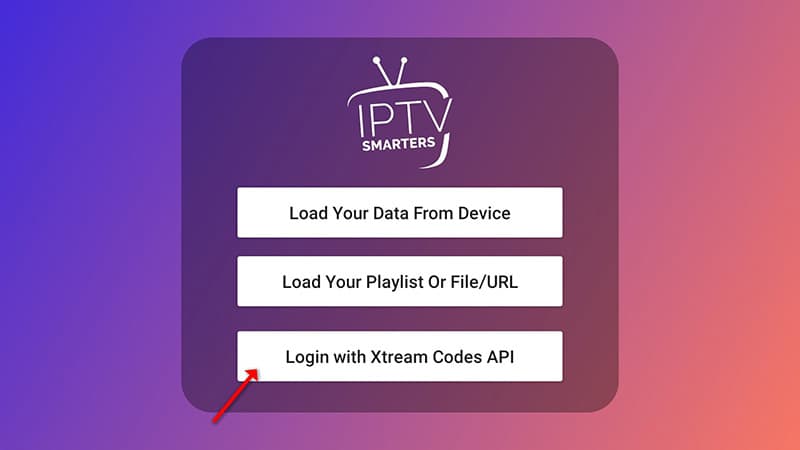
Open the app and tap "Add user", then select "Login with Xtream Codes API". We recommend this method because it enables the Catchup feature and loads the EPG automatically — no extra URL needed.
Enter your credentials
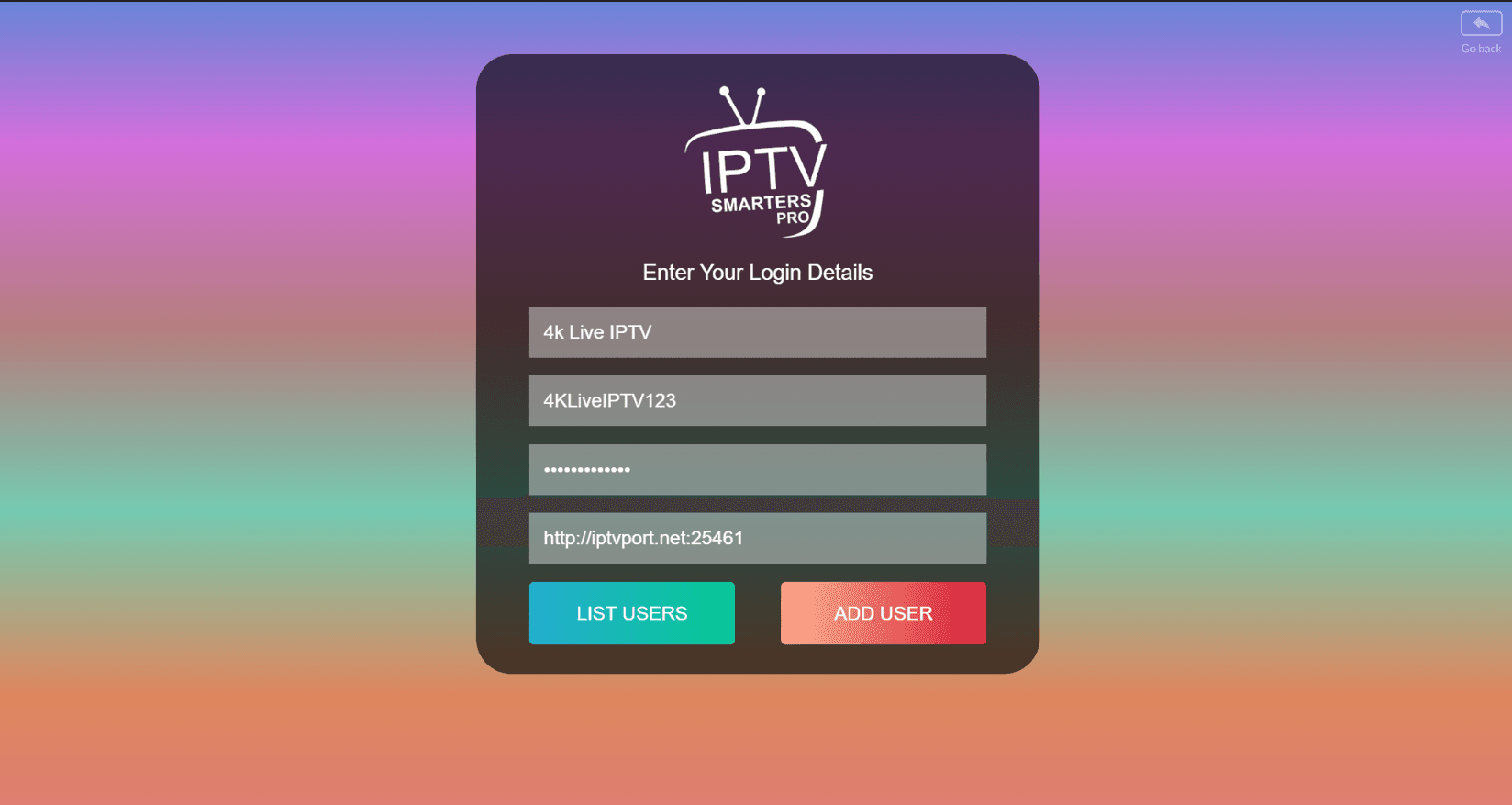
In the first box enter any name you like (for example "4K Live IPTV"). In the second and third boxes enter the Username and Password we sent you via WhatsApp, Email or Chat. Enter the Server URL in the final box. Tap "ADD USER" to continue.
Wait a few seconds
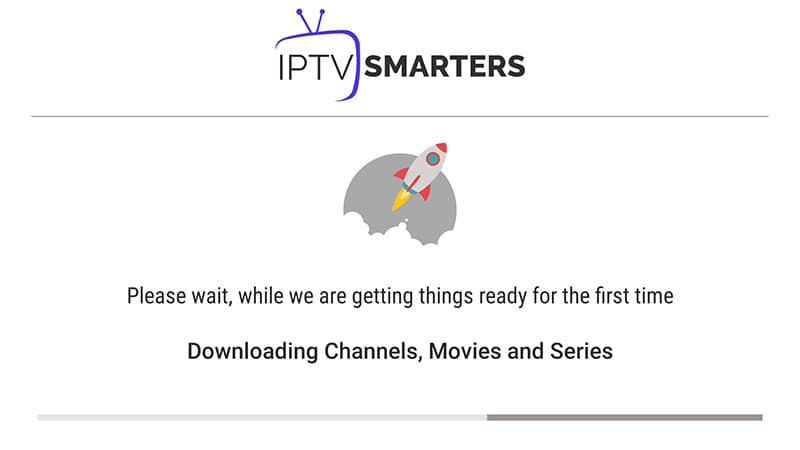
The app will connect to the server and load your channel list. This usually takes 5–15 seconds.
Tap the Live TV icon
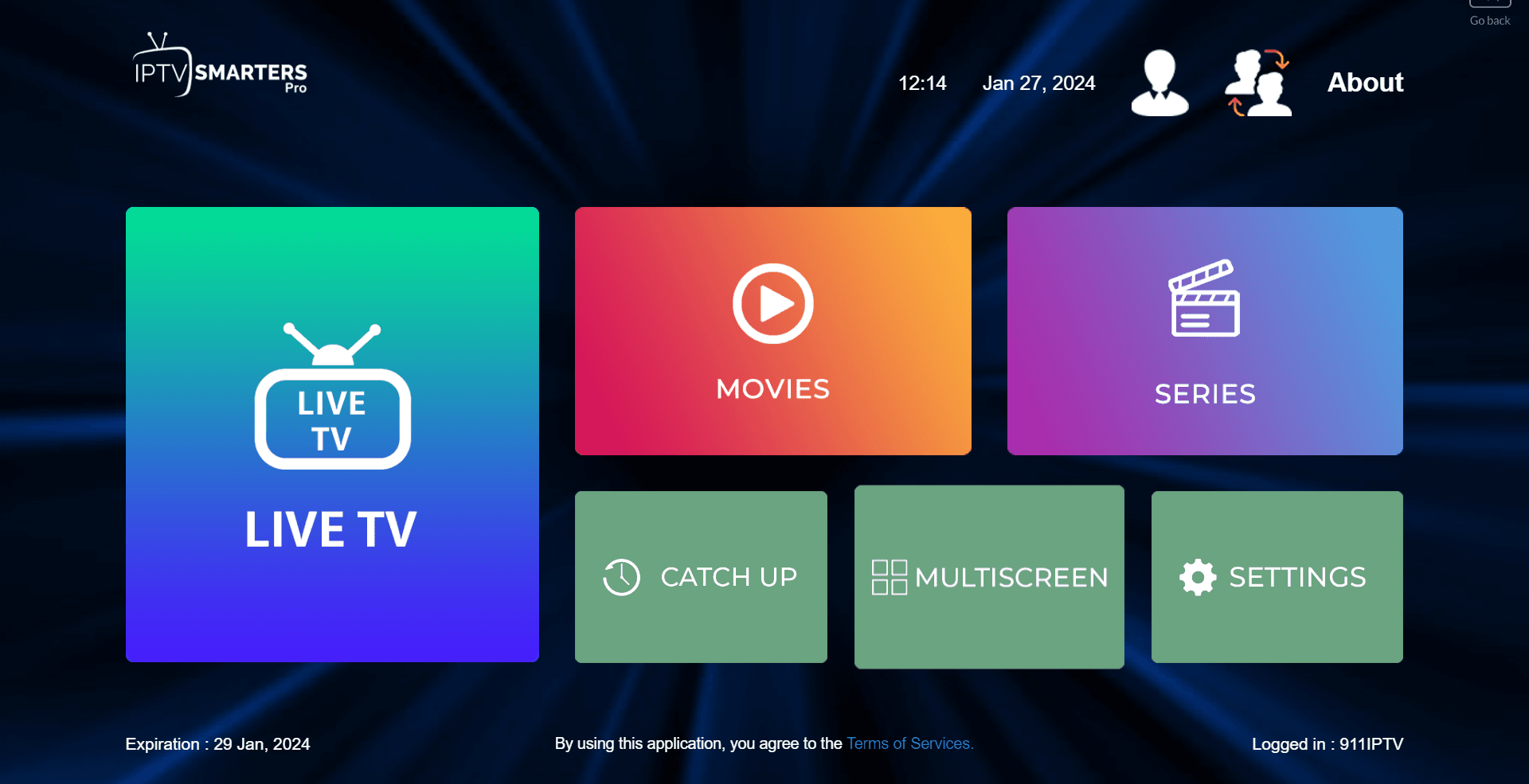
Once loading is complete, tap the "Live TV" icon on the home screen.
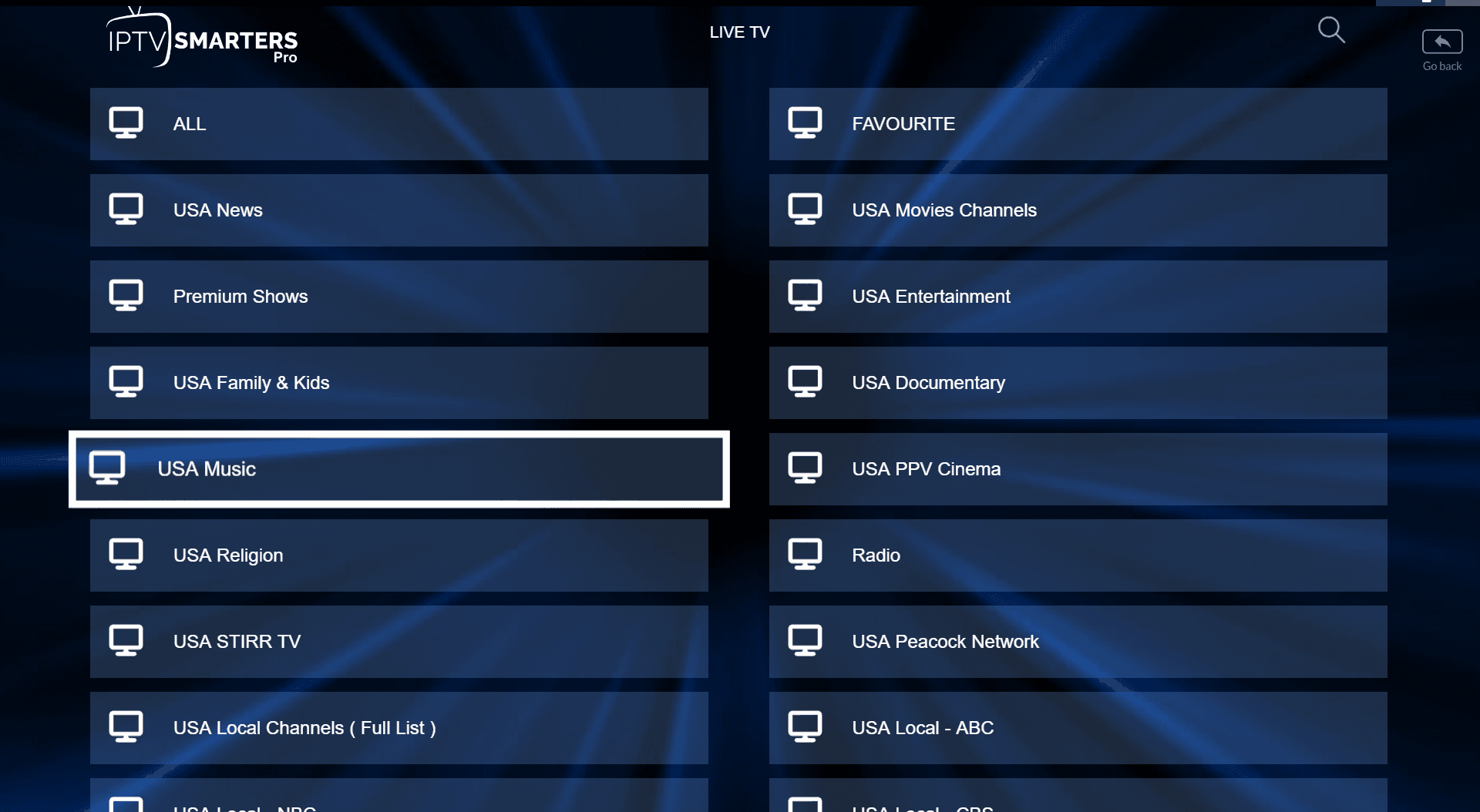
Select a channel group
Browse the channel groups and tap the one you want to watch.
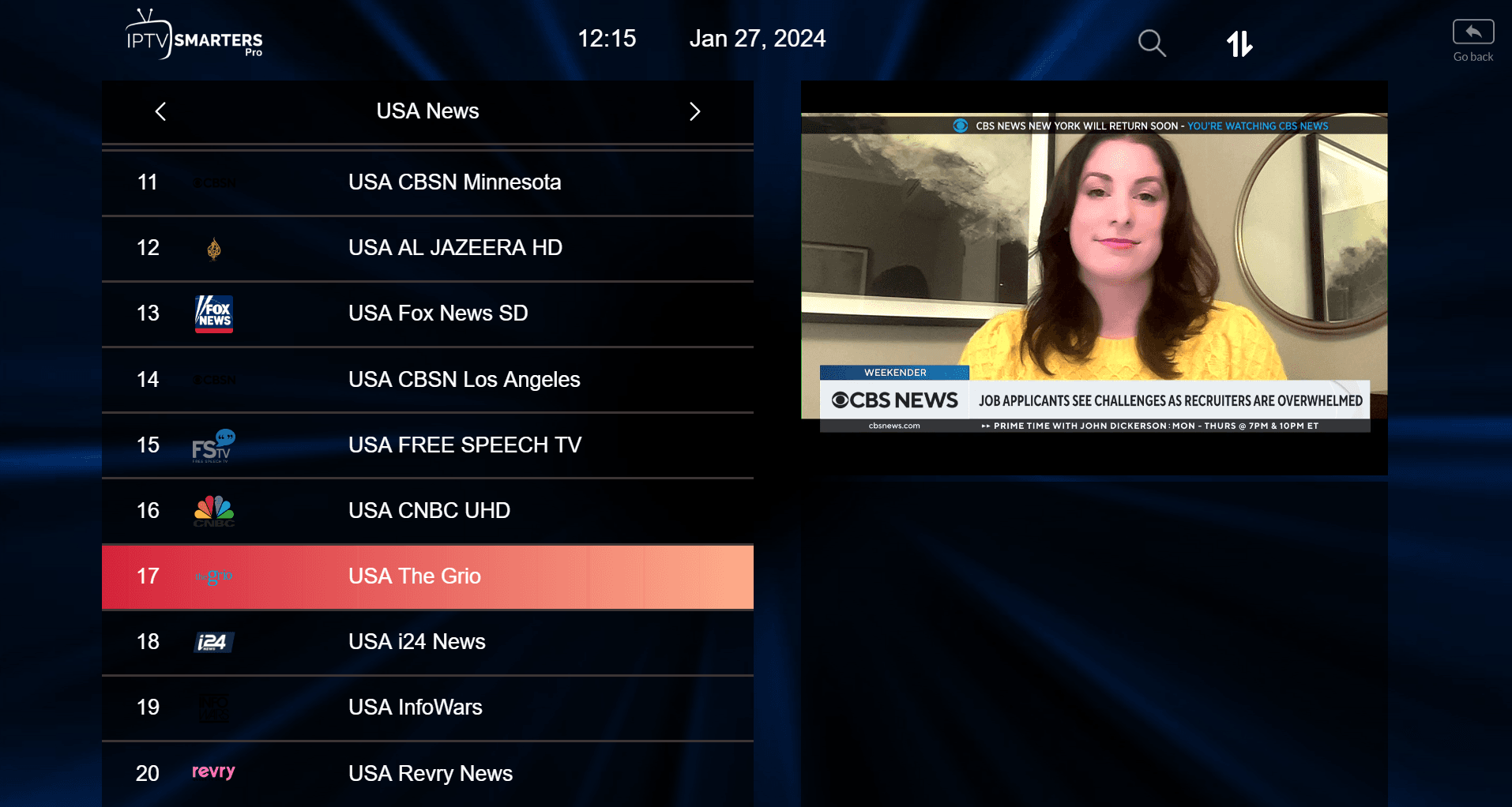
Pick a channel and go full screen
Tap the channel name to start playback, then double-tap the small preview screen to switch to full screen.
Setup via Playlist
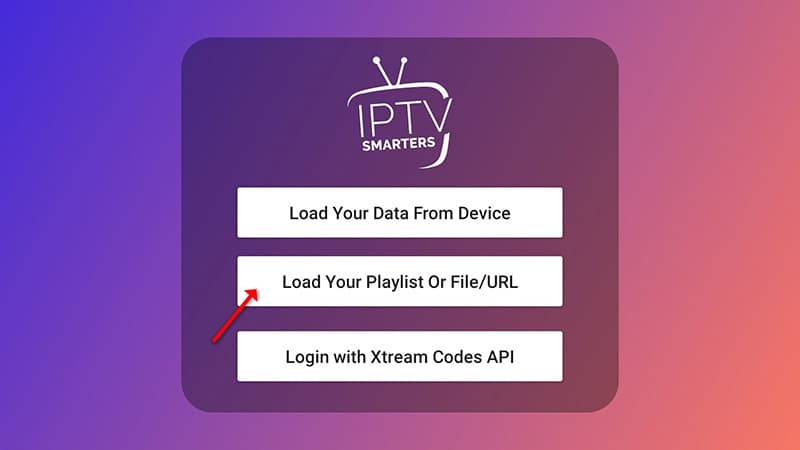
Open "Add user" and choose Playlist
Open the app and tap "Add user", then select "Login with Playlist". Use this method if you have an M3U URL instead of Xtream Codes credentials.
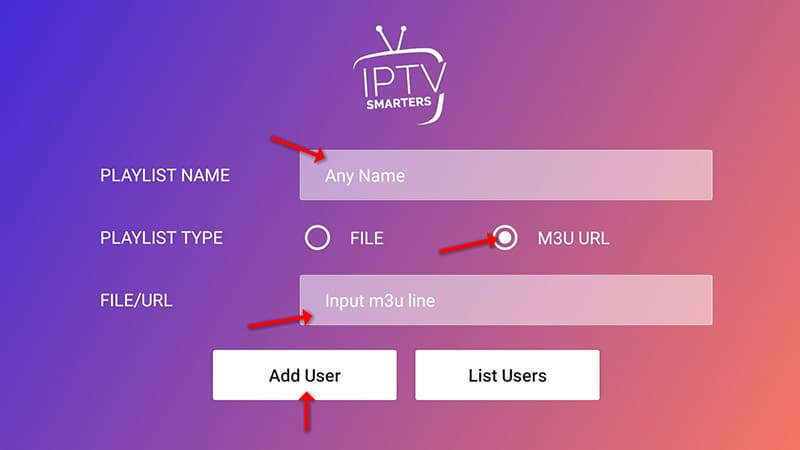
Enter your playlist details
In the first box enter any name you like (for example "IPTV Playlist"). Select "M3U URL" and paste the M3U URL we sent you via WhatsApp, Email or Chat.
Open Live TV and start watching
Tap the "Live TV" icon, select your channel group, then tap the channel you want to watch.
Screenshots are captured against the current app release and re-shot with every major update.
Troubleshooting
Common issues on this device and the fixes that resolve them.
AirPlay or Chromecast icon doesn't appear
Both devices must be on the same Wi-Fi network. On iOS, make sure Bluetooth is on — AirPlay uses it for discovery. On Android, grant the Keydole app local network permission.
Video plays for a moment then stops
Try switching from mobile data to Wi-Fi or vice versa to test. High-quality streams need a stable 10 Mbps or better; some mobile networks throttle video by default.
App closes when I lock the screen
Enable background audio in the Keydole app settings if you want audio to continue after locking the phone. Video playback will pause when the screen is off — this is standard OS behaviour.
Downloads aren't working on iOS
Downloads are only available for select on-demand titles — live TV can't be downloaded. Check the Downloads section of the app to see which titles are eligible.
Still stuck? Contact support — the form will be pre-filled with your device so we can help without back-and-forth. See more fixes in the general troubleshooting hub.
Also on Keydole
Same subscription — every device you own.
Ready to start on iOS & Android?
Pick a plan and your credentials arrive within seconds — activation is instant, on screen and by email.