Keydole on Android TV
Watch IPTV on Sony Bravia, TCL, Chromecast with Google TV, Nvidia Shield and any Android TV device using IPTV Smarters Pro.
What you need
Before you start, check you have the following.
1. Your device
Android TV or Google TV running Android 8.0 (Oreo) or later.
2. The app
IPTV Smarters Pro — available on the Google Play Store.
3. Your credentials
The username and password from your Keydole welcome email. Not signed up yet? Pick a plan.
How to set up
Follow these steps in order. Setup takes 3–5 minutes on most devices.
Step 1: Open the Google Play Store
From your Android TV or Google TV home screen, open the Google Play Store app.
Step 2: Search for and install IPTV Smarters Pro
Use the on-screen keyboard or voice search on your remote to look up "IPTV Smarters Pro". Select it from the results and tap Install. The download and install typically finish within a minute.
Step 3: Accept Terms of Use
Open IPTV Smarters Pro from your home screen. On the first launch, scroll down through the Terms of Use and tap Accept. You can now add your IPTV channels using one of the two methods below.
Setup via Xtream Codes API
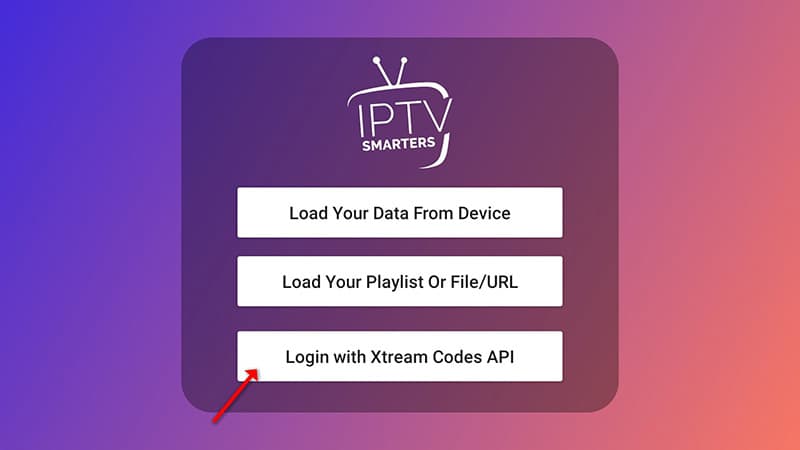
RecommendedOpen "Add user" and choose Xtream Codes
Tap "Add user", then select "Login with Xtream Codes API". We recommend this method because it enables the Catchup feature and loads the EPG automatically — no extra URL needed.
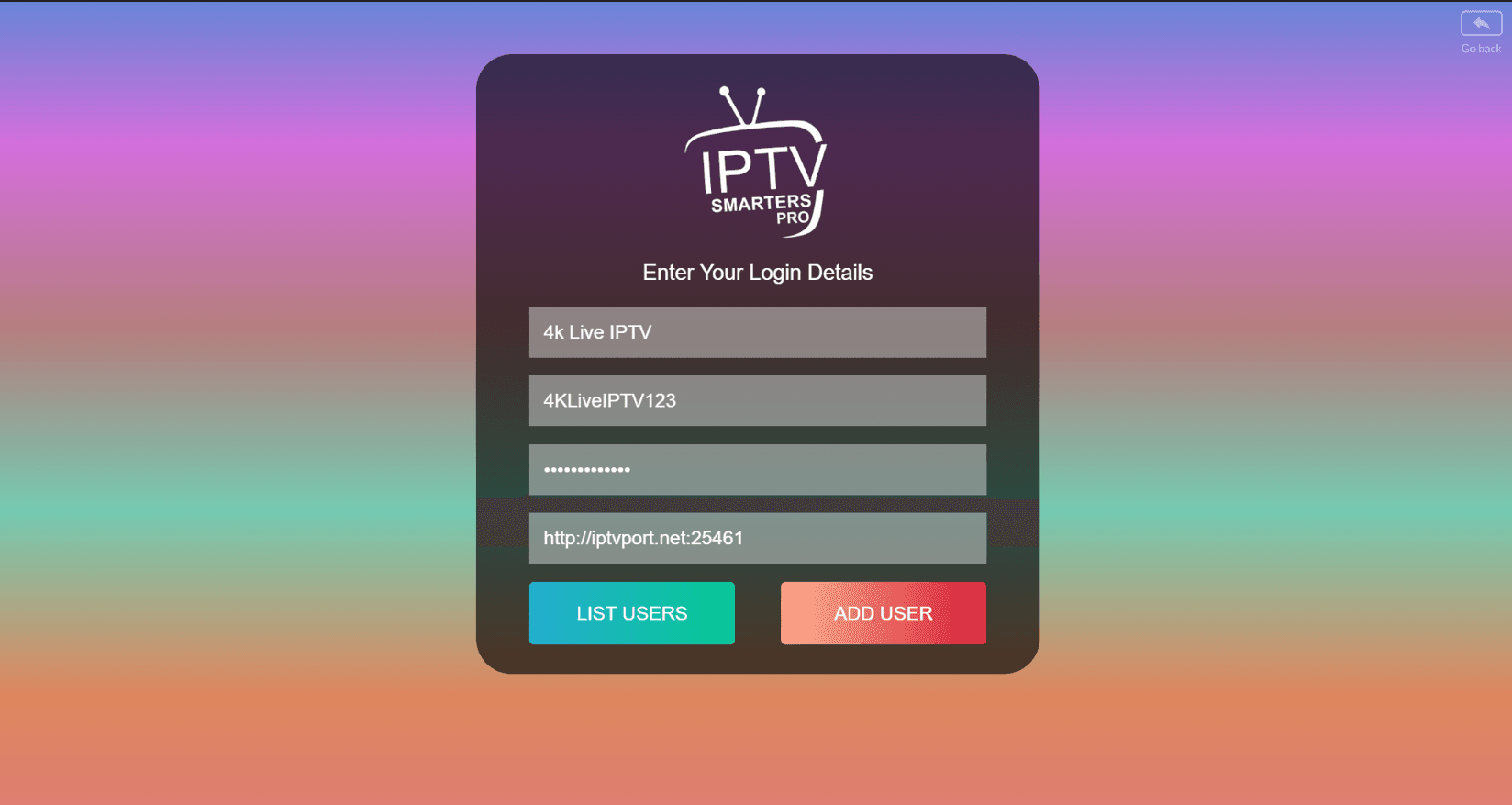
Enter your credentials
In the first box enter any name you like (for example "4K Live IPTV"). In the second and third boxes enter the Username and Password we sent you via WhatsApp, Email or Chat. Enter the Server URL in the final box. Tap "ADD USER" to continue.
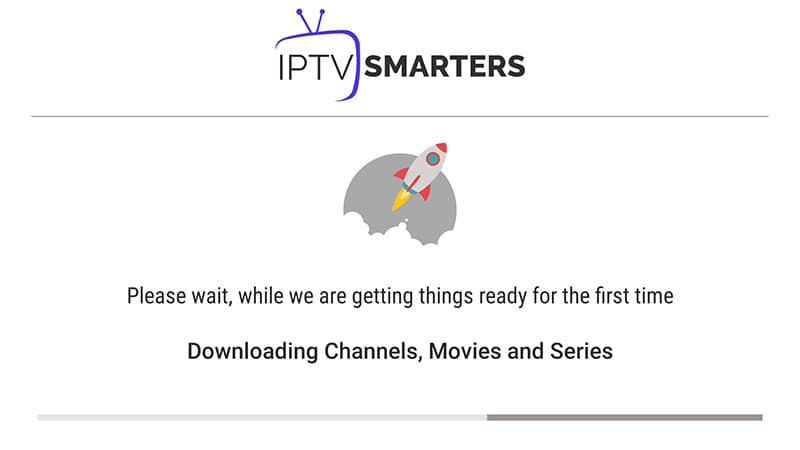
Wait a few seconds
The app will connect to the server and load your channel list. This usually takes 5–15 seconds.
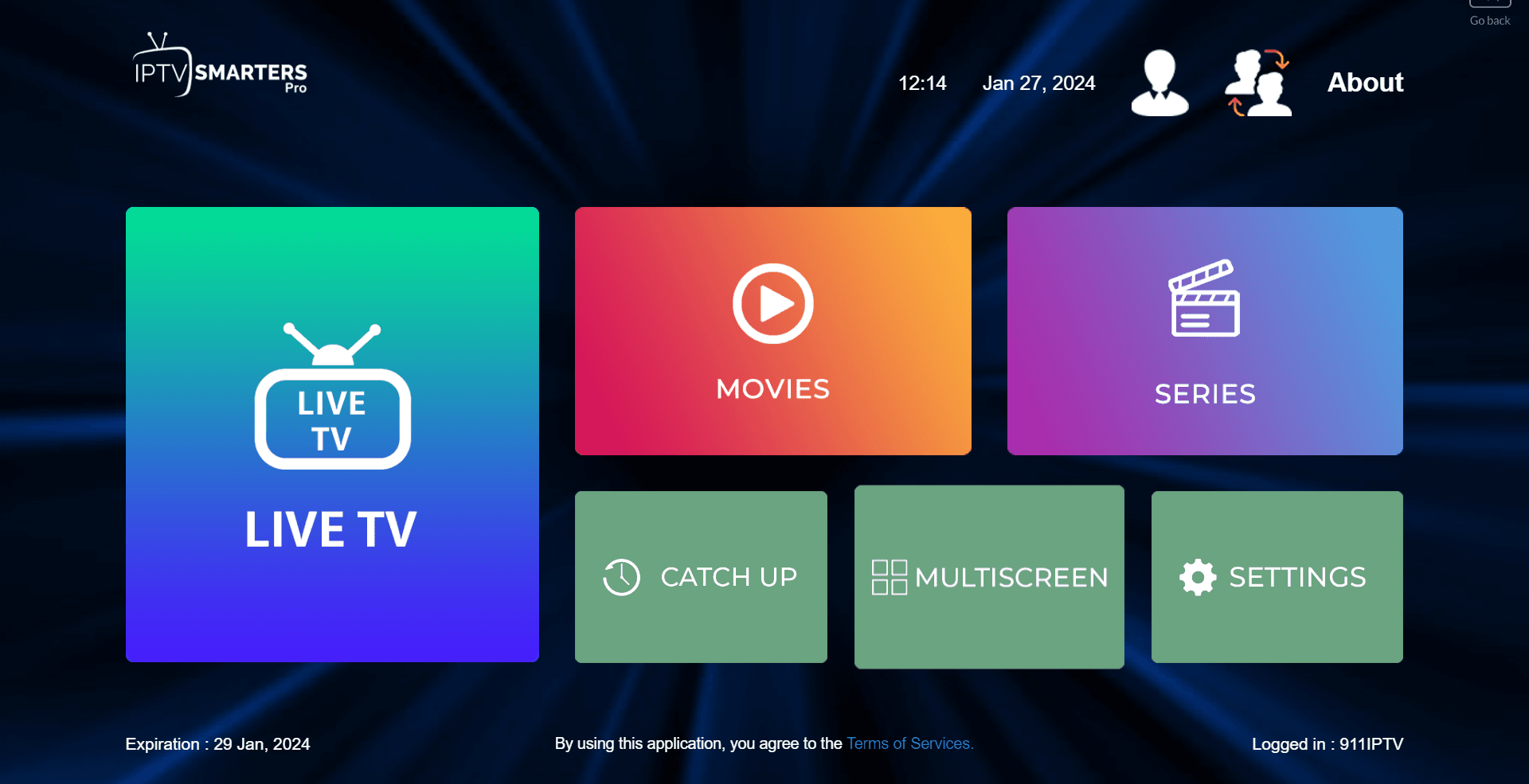
Tap the Live TV icon
Once loading is complete, tap the "Live TV" icon on the home screen.
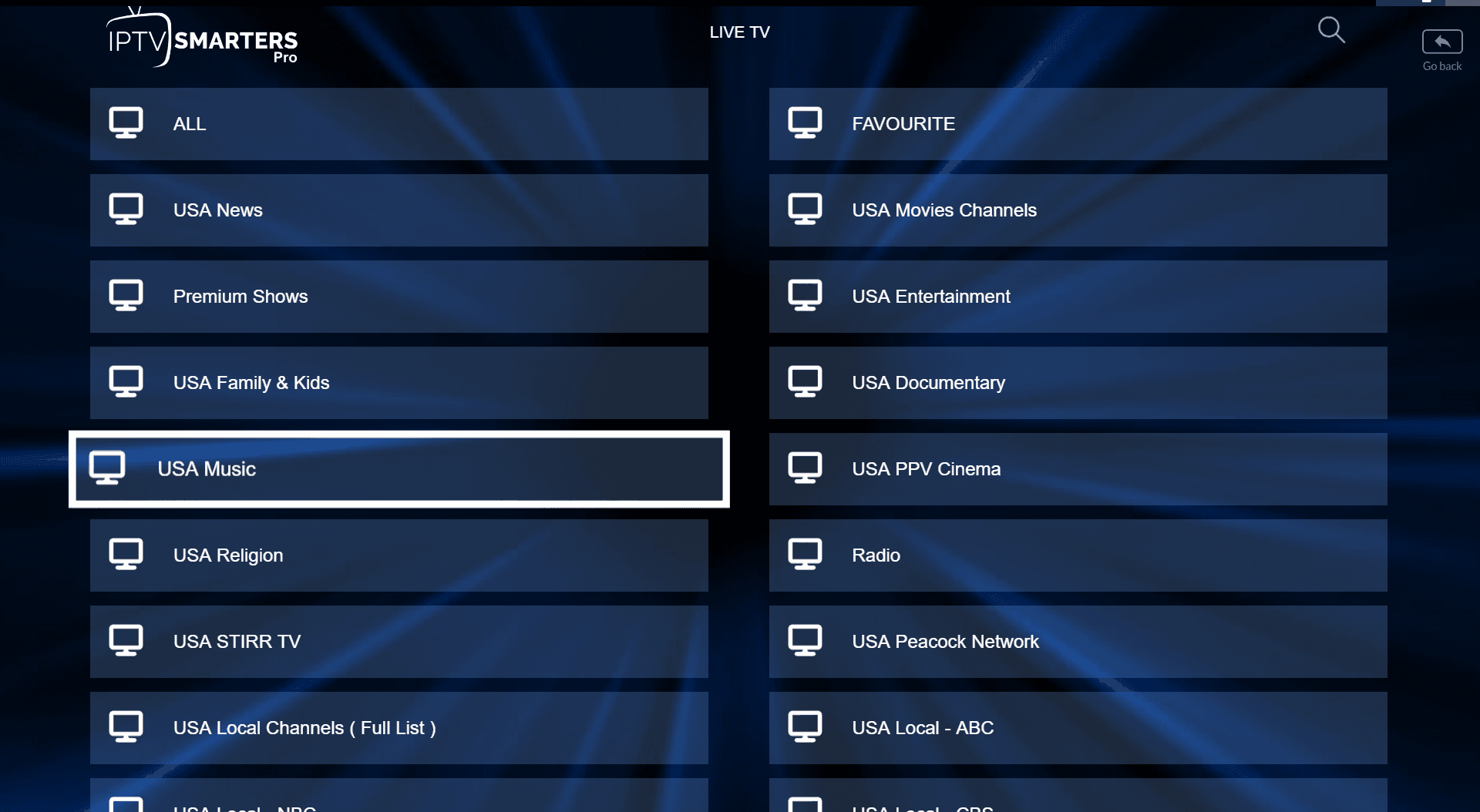
Select a channel group
Browse the channel groups and tap the one you want to watch.
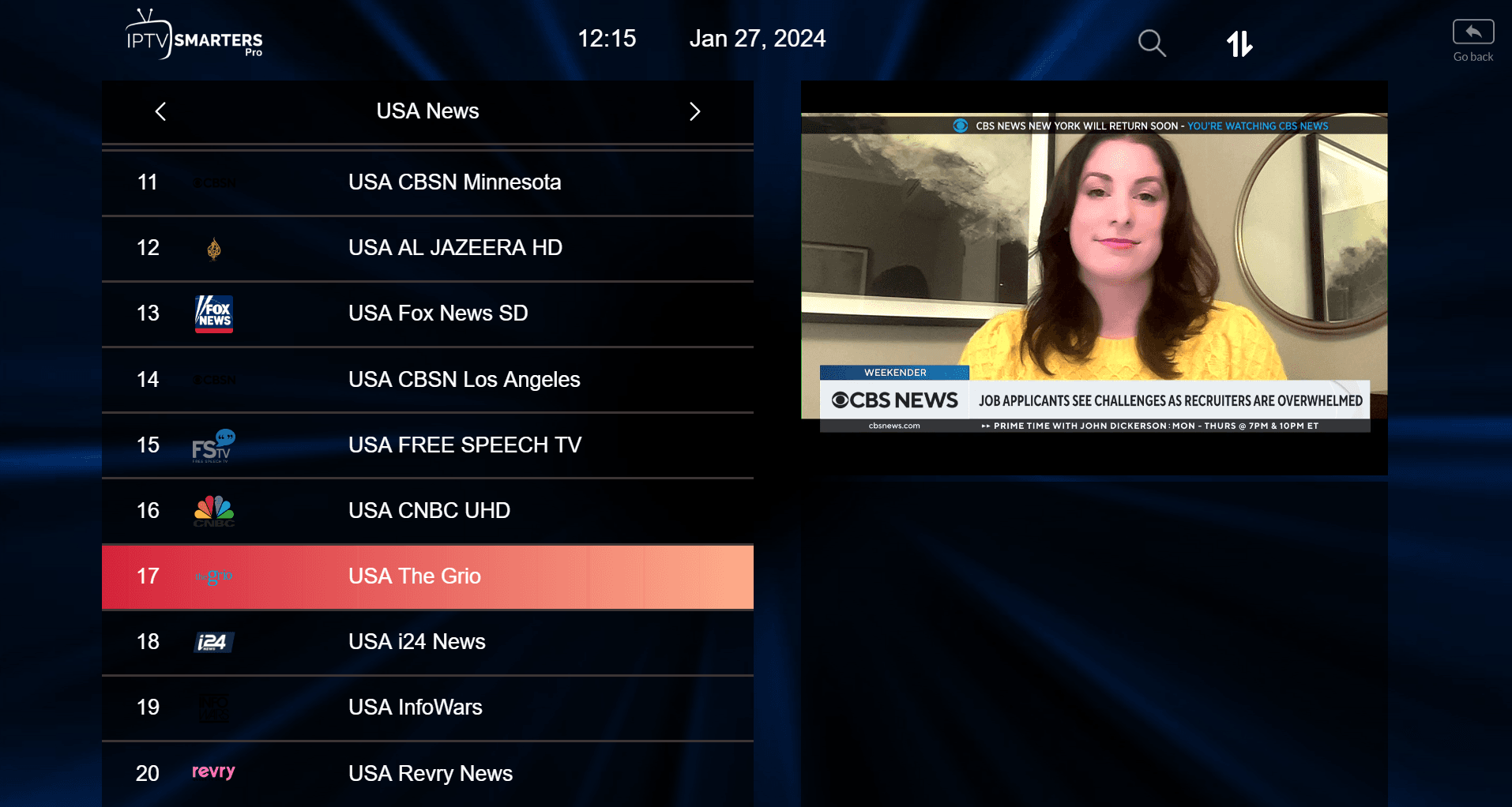
Pick a channel and go full screen
Tap the channel name to start playback, then double-tap the small preview screen to switch to full screen.
Setup via Playlist
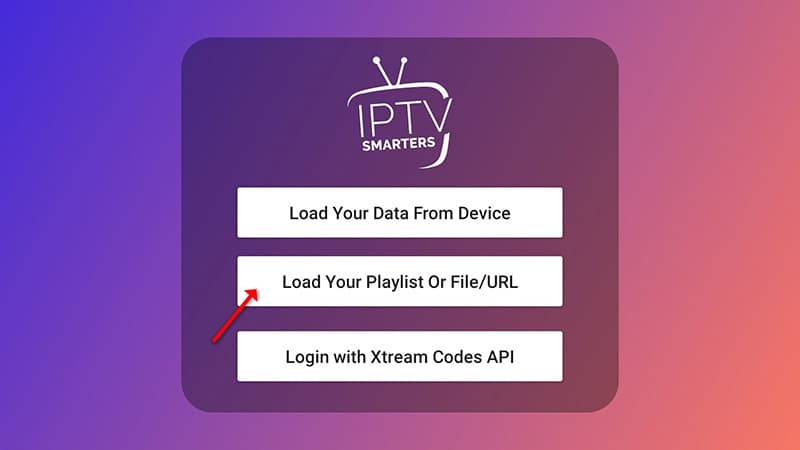
Open "Add user" and choose Playlist
Tap "Add user", then select "Login with Playlist". Use this method if you have an M3U URL instead of Xtream Codes credentials.
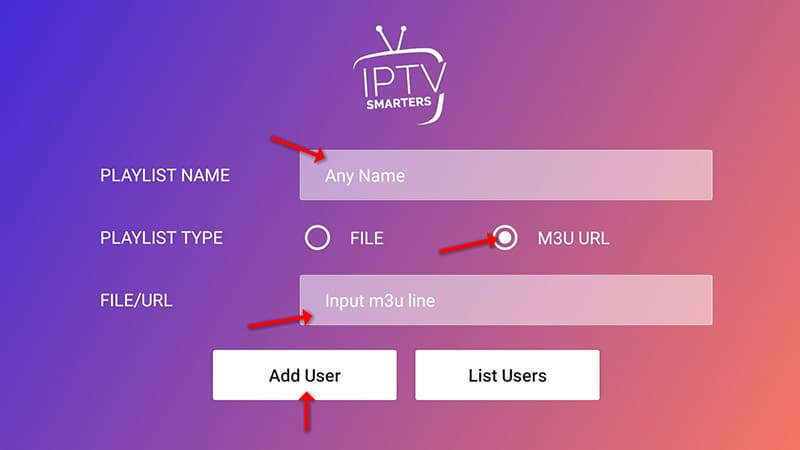
Enter your playlist details
In the first box enter any name you like (for example "IPTV Playlist"). Select "M3U URL" and paste the M3U URL we sent you via WhatsApp, Email or Chat.
Open Live TV and start watching
Tap the "Live TV" icon, select your channel group, then tap the channel you want to watch.
Screenshots are captured against the current app release and re-shot with every major update.
Troubleshooting
Common issues on this device and the fixes that resolve them.
IPTV Smarters Pro isn't showing in the Play Store
Check that your device is running Android TV or Google TV (not Android for phones) and Android 8.0 or later. A system update, if offered, resolves most compatibility issues.
Sound but no picture, or picture but no sound
In the IPTV Smarters settings, switch the video decoder from Auto to Hardware, then restart the app. If audio is still missing, check that your TV's HDMI input matches the app's audio output format.
App disconnects after a few minutes
This is almost always a Wi-Fi issue. Test another streaming app — if it also drops, restart your router. A wired Ethernet connection is the most reliable fix.
Remote's back button exits the app
This is default Google TV behaviour. Use the on-screen back arrow inside IPTV Smarters when navigating between menus, and reserve the remote back button for leaving the app entirely.
Still stuck? Contact support — the form will be pre-filled with your device so we can help without back-and-forth. See more fixes in the general troubleshooting hub.
Also on Keydole
Same subscription — every device you own.
Ready to start on Android TV?
Pick a plan and your credentials arrive within seconds — activation is instant, on screen and by email.